
Introduction
A graphical user interface (GUI) can simplify system management for users who prefer visual interaction over command-line tools. While Linux servers are traditionally managed via CLI, there are scenarios where a desktop environment is useful — for example, for application testing, administrative tools, or users new to Linux.
In this guide, you will learn how to install the GNOME desktop environment on AlmaLinux. We’ll cover system preparation, GNOME installation, enabling graphical login, and verifying that the desktop environment is working correctly.

GNOME Linux
GNOME is a popular desktop environment for Linux systems that provides a clean, modern, and user-friendly interface. It allows users to interact with the operating system using windows, menus, and graphical tools instead of relying solely on the command line.
GNOME is commonly used on workstations, desktops, and development systems, but it can also be installed on servers when a graphical interface is required.
GNOME install
Before installing any software, we need to update the index and package on AlmaLinux, Serverspace provide several version of OS, but installation will be the same:
sudo dnf update -y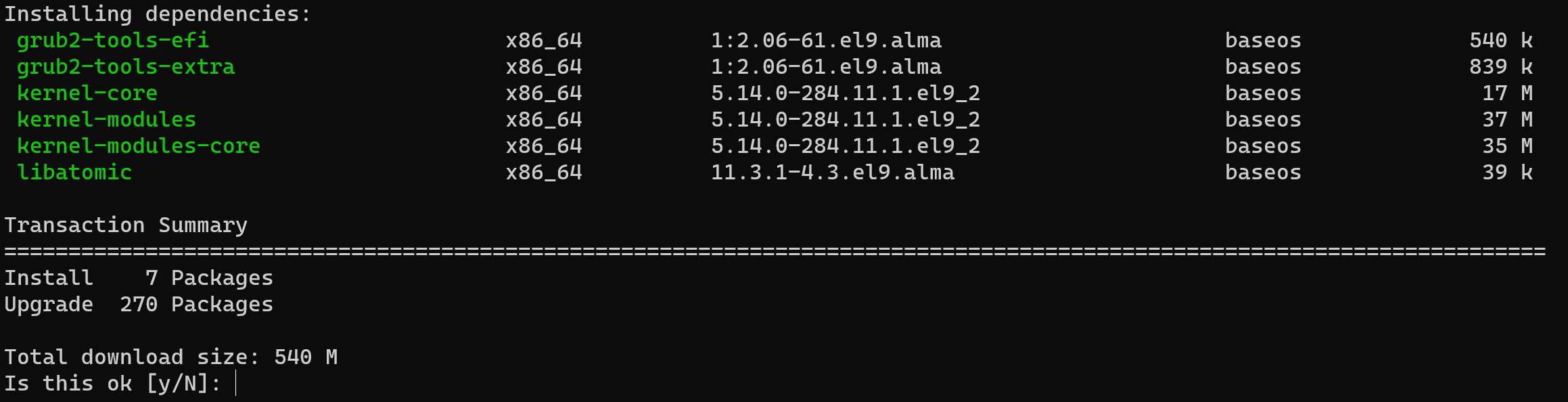
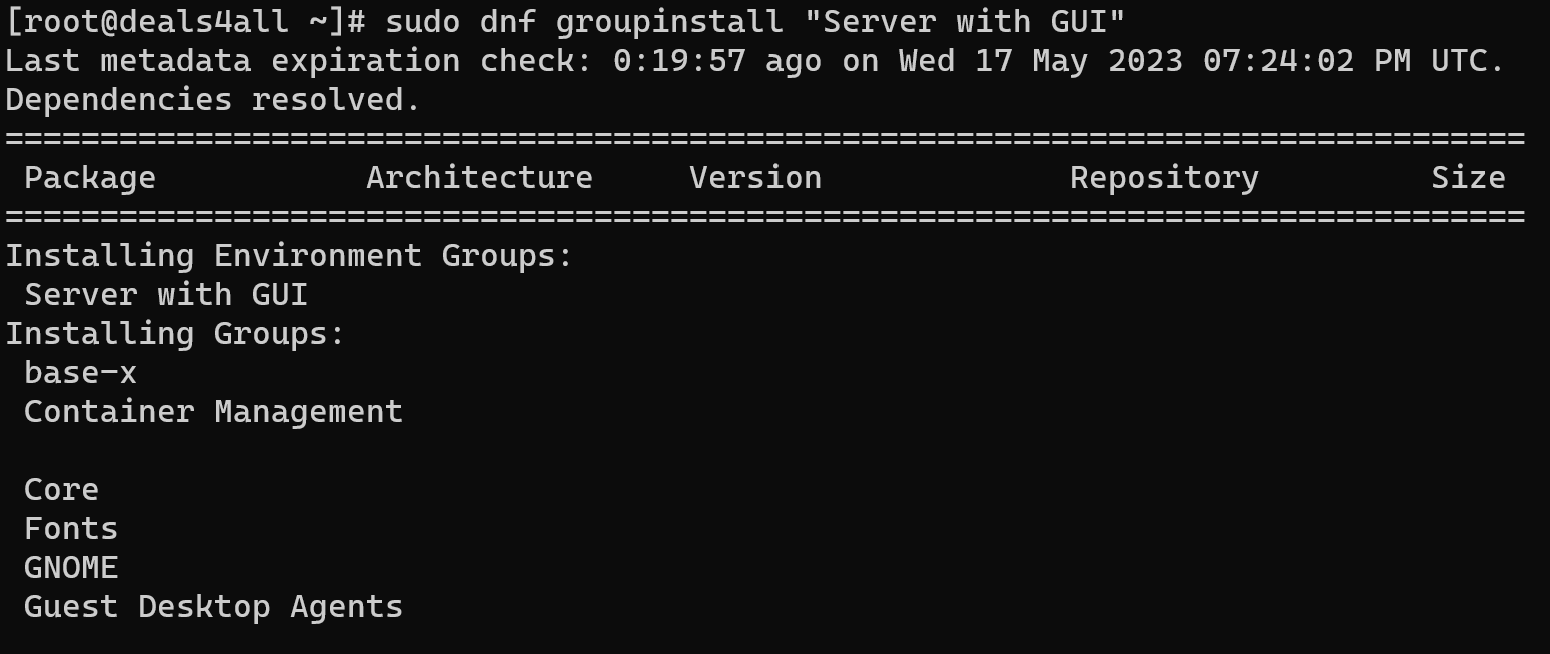
Install the Gnome desktop environment and related packages by running the following command:
sudo dnf groupinstall "Server with GUI"The "Server with GUI" package group installs GNOME along with all required graphical components and services.
Once the installation is complete, enable the graphical login manager by running the following command:
sudo systemctl set-default graphical.targetThis command configures the system to boot into graphical mode by default instead of the command-line interface.

Reboot your system for changes to take effect:
sudo reboot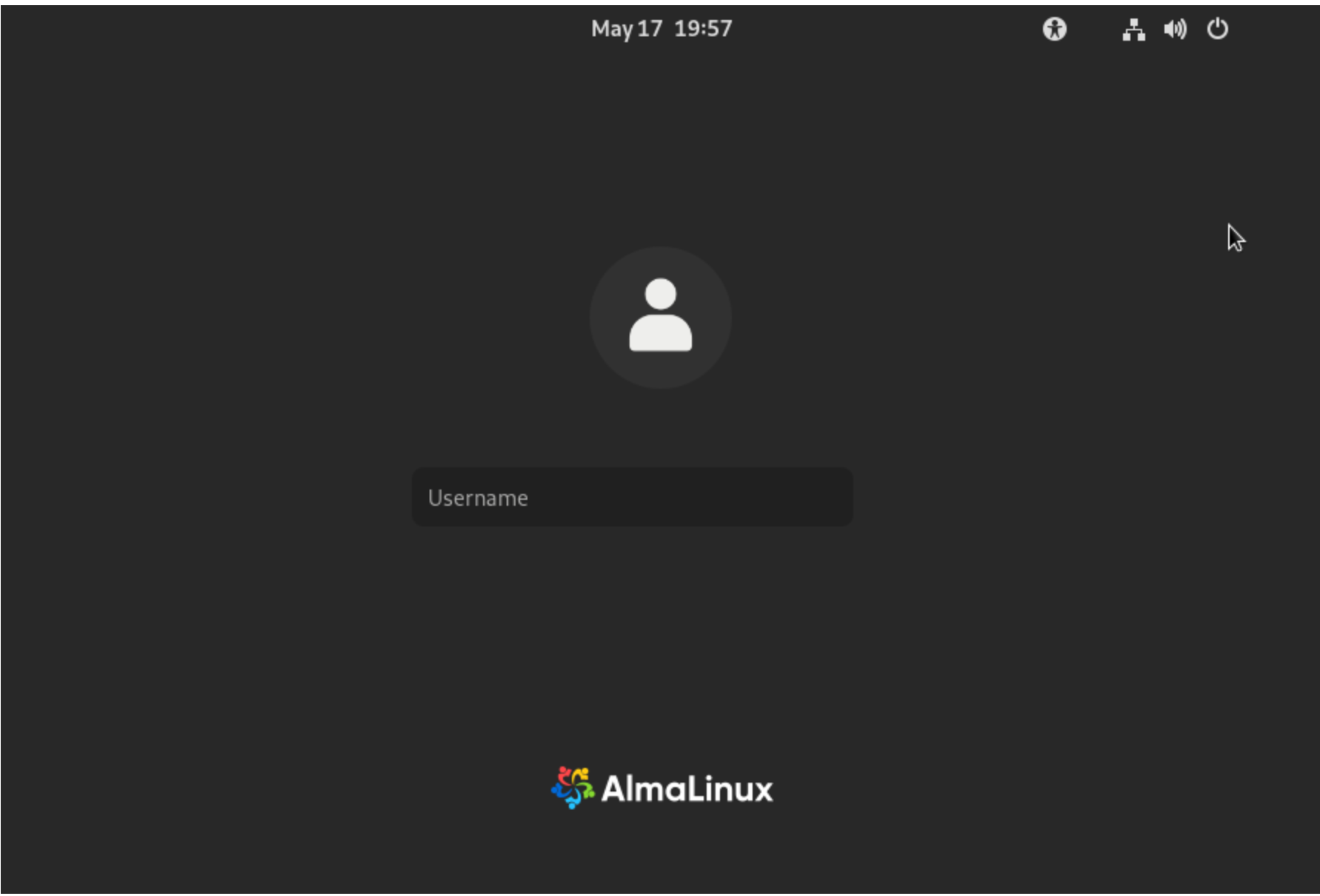
After reboot, the system will start with a graphical login screen. You can access it using a local console, web-based console provided by your cloud provider, or a remote desktop solution.
Conclusion
In this guide, you learned how to install the GNOME desktop environment on AlmaLinux and enable graphical login.
GNOME provides a modern and intuitive interface that can simplify system management when a GUI is required. With GNOME installed, you can manage applications and system settings visually while still having full access to the command line when needed.
FAQ — Installing GNOME on AlmaLinux
- Q: What is GNOME and why would I install it on AlmaLinux?
A: GNOME is a graphical desktop environment for Linux. Installing GNOME on AlmaLinux can be useful when a graphical interface is required for system administration, application testing, or users who prefer GUI-based interaction instead of working exclusively with the command line. - Q: Is GNOME recommended for production servers?
A: In most production environments, servers are managed via CLI for performance and security reasons. GNOME should be installed only when a graphical interface is explicitly required, as it consumes additional system resources. - Q: Which AlmaLinux versions support GNOME?
A: GNOME can be installed on AlmaLinux 8 and AlmaLinux 9. The installation steps may vary slightly depending on the version, but the "Server with GUI" package group is supported on both. - Q: What are the minimum system requirements for GNOME?
A: While GNOME can run on modest hardware, for acceptable performance it is recommended to have:
1) At least 2 GB of RAM (4 GB or more recommended)
2) Sufficient disk space (at least 2–3 GB for GUI packages)
3) A stable network connection for package installation - Q: Does installing GNOME affect existing server services?
A: No. Installing GNOME does not interfere with existing services such as web servers, databases, or background applications. It only adds graphical components and changes the default boot target to graphical mode. - Q: How can I switch back to command-line mode after installing GNOME?
A: You can revert to CLI mode by changing the default system target:sudo systemctl set-default multi-user.targetThen reboot the system.
- Q: Can I access GNOME remotely after installation?
A: Yes, but GNOME itself does not provide remote access. You will need to configure a remote desktop solution such as xRDP, VNC, or use a web-based console provided by your cloud provider. - Q: Is it possible to uninstall GNOME later?
A: Yes. You can remove GNOME and related graphical packages by removing the GUI package group and cleaning up unused dependencies:sudo dnf groupremove "Server with GUI"sudo dnf autoremove - Q: Does GNOME replace the command-line interface?
A: No. GNOME adds a graphical interface on top of the existing system. The command line remains fully available through terminal applications or SSH. - Q: Why does the system boot into a graphical login after installation?
A: During the setup, the system target is changed to graphical.target, which instructs AlmaLinux to start the graphical login manager by default. This behavior can be changed at any time.
- Q: Is GNOME the only desktop environment available for AlmaLinux?
A: No. AlmaLinux also supports other desktop environments such as KDE Plasma, XFCE, and MATE. GNOME is one of the most commonly used and officially supported options.