Zabbix is a powerful open-source monitoring system designed to track the status of servers, network equipment, applications, and services in real time. It allows users to collect metrics, visualize data, configure notifications, and automate responses to incidents, providing full control over infrastructure.
Zabbix is widely used in enterprise and cloud environments due to its flexibility, scalability, and support for distributed architecture. The system is suitable both for small projects and for monitoring thousands of nodes in large data centers.
Zabbix enables monitoring of server availability, CPU load, memory usage, disk usage, network traffic, as well as application and service health.
Where Zabbix is Used
- Monitoring servers and virtual machines.
- Managing network equipment (routers, switches, firewalls).
- Tracking application and microservices health.
- Monitoring databases and web services.
- Infrastructure monitoring in DevOps and SRE practices.
- Log and event analysis in IT systems.
Why Use Zabbix
- Full real-time monitoring capabilities.
- Flexible trigger and notification system.
- Agent-based and agentless monitoring support.
- Scalable architecture with proxy servers.
- Built-in visualization: graphs, maps, dashboards.
- Open-source and license-free solution.
Minimum Requirements
- 2 vCPU.
- 4 GB RAM.
- 20–40 GB SSD/NVMe storage.
- Ubuntu 22.04 or Ubuntu 24.04.
Important: Zabbix uses the following default ports:
- 10051/TCP — Zabbix Server (receiving data from agents).
- 10050/TCP — Zabbix Agent.
- 80/443 — Web interface (HTTP/HTTPS).
Installing Zabbix via Serverspace Panel
The easiest way to deploy Zabbix is by using the One-Click Apps feature in the Serverspace control panel. It allows you to deploy a fully configured monitoring system within minutes.
Step 1. Create a New Cloud Server
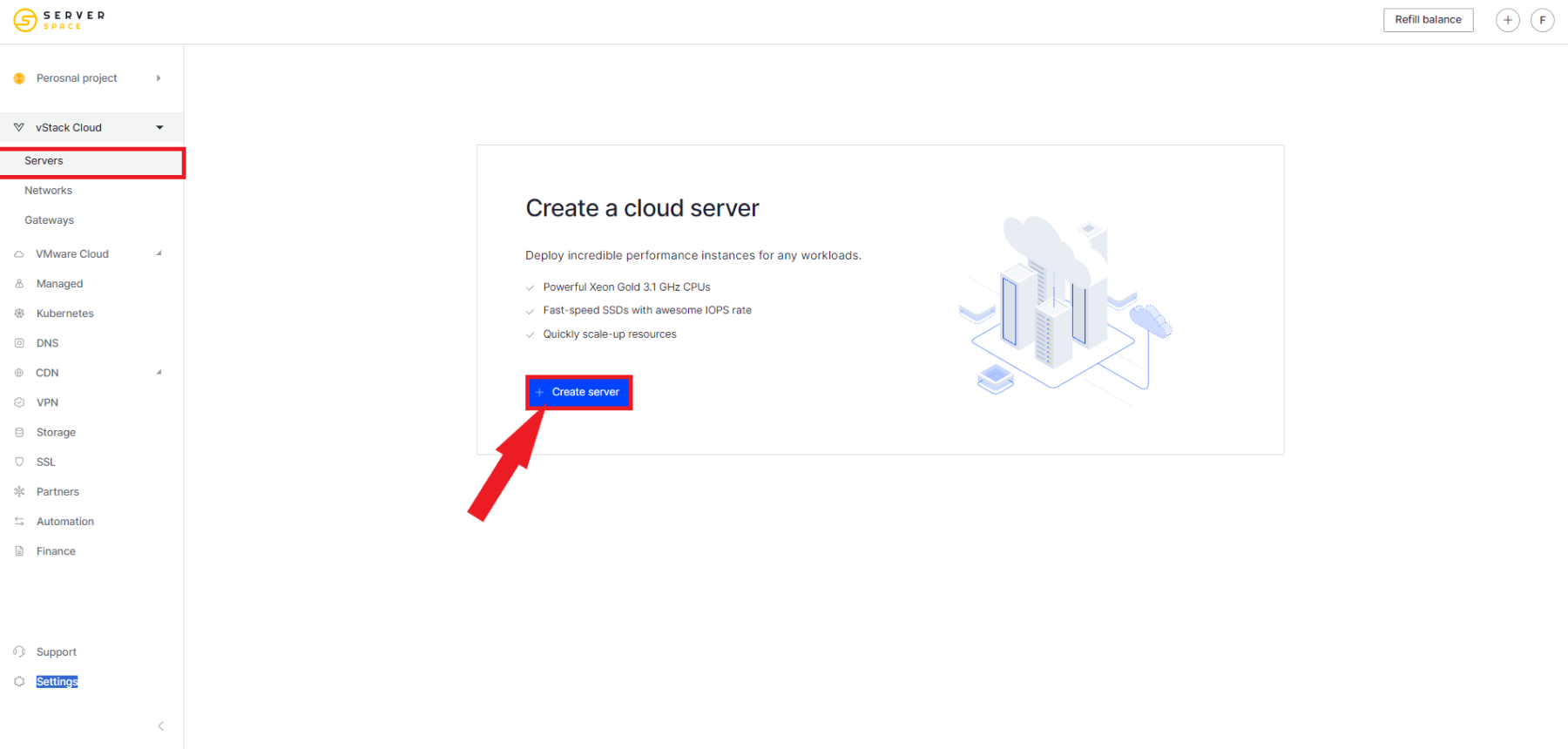
Log in to the Serverspace control panel and click Create Server.
Step 2. Choose the Applications Section
During OS selection, open the Applications tab and find Zabbix in the list of available solutions.

Step 3. Configure Server Parameters
Select virtual machine specifications:
- data center region;
- number of vCPUs;
- amount of RAM;
- disk size;
- server name.
For testing and small projects, 2 vCPU and 4 GB RAM is usually sufficient.
Step 4. Wait for Installation to Complete
After server creation, the platform will automatically:
- install Ubuntu;
- deploy Zabbix Server, Frontend, and Agent;
- configure the database (MySQL/PostgreSQL);
- start all required services.
This process typically takes 3–7 minutes.
Step 5. Access the Web Interface
After installation, open your browser and go to:
http://YOUR_SERVER_IP/zabbixLogin credentials:
- Login: Admin
- Password: zabbix
It is recommended to change the administrator password after the first login.
Checking Zabbix Operation
Check server status via SSH:
sudo systemctl status zabbix-serverCheck the agent:
sudo systemctl status zabbix-agentCheck the web interface:
curl -I http://localhost/zabbixIf the system is working correctly, you should receive an HTTP 200 OK response.
Useful Zabbix Management Commands
| Action | Command |
|---|---|
| Start server | sudo systemctl start zabbix-server |
| Stop server | sudo systemctl stop zabbix-server |
| Restart server | sudo systemctl restart zabbix-server |
| Check status | sudo systemctl status zabbix-server |
| View logs | sudo journalctl -u zabbix-server -f |
Security Recommendations
- Restrict access to the web interface by IP address.
- Change the default administrator password immediately after installation.
- Use HTTPS for secure access to the panel.
- Close unused ports (10050/10051 if not required).
- Regularly update Zabbix and the operating system.
- Separate user roles within the monitoring system.
Common Issues
Zabbix server does not start
Check service status:
sudo systemctl status zabbix-serverNo data from agent
Ensure port 10050 is open and the correct server IP is configured in the agent settings.
Web interface is not accessible
Check web server status:
sudo systemctl status apache2And test URL:
http://localhost/zabbixWhen to Use Zabbix
| Task | Is Zabbix Suitable? |
|---|---|
| Server monitoring | Yes |
| Network monitoring | Yes |
| Cloud telemetry | Yes |
| Deep Big Data analytics | Partially |
| ClickHouse-level BI reporting | No |
FAQ
What is Zabbix used for?
Zabbix is used for real-time monitoring of servers, applications, network devices, and services with alerting and visualization capabilities.
Is Zabbix difficult to install?
No, when using Serverspace One-Click Apps, installation is fully automated and takes only a few minutes.
Is Zabbix free?
Yes, Zabbix is an open-source solution and does not require a license.
How is Zabbix different from Prometheus?
Zabbix is an all-in-one monitoring system, while Prometheus is often used with additional tools for visualization and alerting.
Deploy Zabbix in Minutes with Serverspace
Using One-Click Apps in the Serverspace panel, you can quickly get a fully configured monitoring system without manual setup.
- Automatic installation and configuration.
- Ready-to-use web interface.
- Database support included.
- Scalable architecture.
- High-performance NVMe storage.
- Global data center availability.
Conclusion
Zabbix is one of the most popular infrastructure monitoring systems, enabling real-time tracking of servers, applications, and network environments.
Thanks to its flexible architecture, powerful notification system, and open-source license, Zabbix is suitable for organizations of all sizes — from small projects to large distributed systems.
Using the ready-to-deploy Serverspace solution allows you to launch a fully configured monitoring system within minutes and immediately start tracking your infrastructure.