Jenkins is a popular open-source automation server designed for implementing CI/CD (Continuous Integration and Continuous Delivery) pipelines. It enables automation of application building, testing, and deployment, accelerating development workflows and improving software stability.
Jenkins is widely used in DevOps practices and is one of the key tools for automating the software development lifecycle. It supports a large ecosystem of plugins and integrations with version control systems (Git, GitHub, GitLab), container platforms (Docker), and cloud environments.
Jenkins allows teams to build automated pipelines, run tests on every code change, collect build artifacts, and deploy applications to different environments.
Where Jenkins is Used
- CI/CD pipelines for automated build and deployment processes.
- Automated application testing workflows.
- Integration with Git, GitHub, GitLab, and Bitbucket.
- Application deployment using Docker and Kubernetes.
- DevOps workflows in enterprise development environments.
- Automation of build and release processes.
Why Use Jenkins
- Full automation of CI/CD pipelines.
- Extensive plugin ecosystem.
- Support for distributed builds (master/agent architecture).
- Strong integration with DevOps toolchains.
- Flexible pipeline configuration (Pipeline as Code).
- Open-source solution with no licensing costs.
Minimum Requirements
- 2 vCPU.
- 4 GB RAM.
- 20–40 GB SSD/NVMe storage.
- Ubuntu 22.04 or Ubuntu 24.04.
Important: Jenkins uses the following default ports:
- 8080/TCP — Jenkins web interface.
- 50000/TCP — inbound agent connections.
Installing Jenkins via Serverspace Panel
The easiest way to deploy Jenkins is by using One-Click Apps in the Serverspace control panel. This allows you to quickly get a fully functional CI/CD platform without manual configuration.
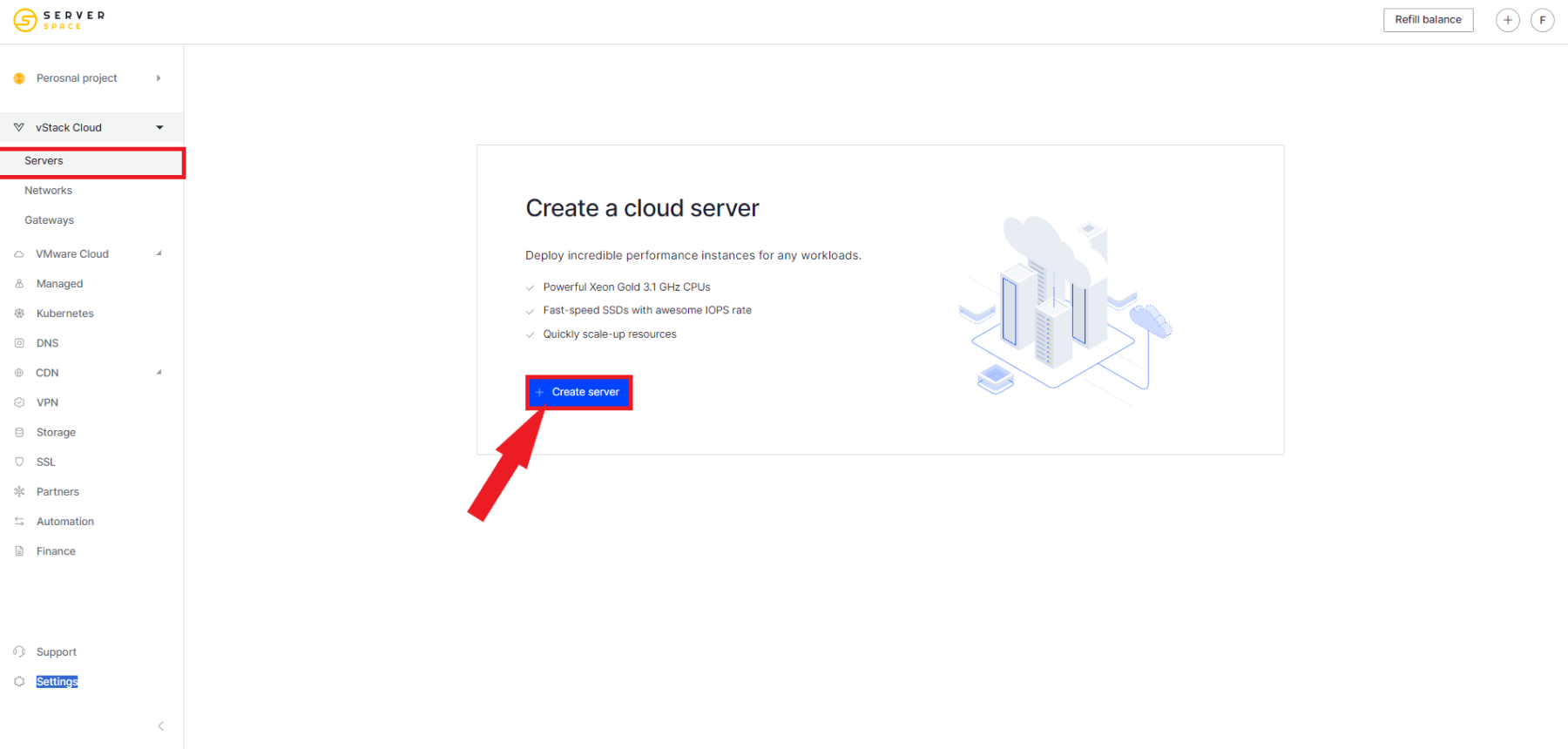
Step 1. Create a New Cloud Server
Log in to the Serverspace control panel and click Create Server.
Step 2. Select Applications Section
During OS selection, open the Applications tab and find Jenkins in the list of available solutions.

Step 3. Configure Server Parameters
Select virtual machine specifications:
- data center region;
- number of vCPUs;
- amount of RAM;
- disk size;
- server name.
For small projects, 2 vCPU and 4 GB RAM is usually sufficient.
Step 4. Wait for Installation
After server creation, the platform will automatically:
- install Ubuntu;
- deploy Jenkins;
- install Java and dependencies;
- start the Jenkins service;
- configure the web interface.
This process typically takes 3–7 minutes.
Step 5. Access the Web Interface
After installation, open your browser and go to:
http://YOUR_SERVER_IP:8080For first login, you will need the administrator password:
/var/lib/jenkins/secrets/initialAdminPasswordRun the command:
sudo cat /var/lib/jenkins/secrets/initialAdminPasswordChecking Jenkins Operation
Check service status:
sudo systemctl status jenkinsCheck port availability:
curl -I http://localhost:8080If Jenkins is working correctly, you will receive an HTTP 200 OK response.
Useful Jenkins Management Commands
| Action | Command |
|---|---|
| Start Jenkins | sudo systemctl start jenkins |
| Stop Jenkins | sudo systemctl stop jenkins |
| Restart Jenkins | sudo systemctl restart jenkins |
| Check status | sudo systemctl status jenkins |
| View logs | sudo journalctl -u jenkins -f |
Security Recommendations
- Restrict access to Jenkins web interface by IP address.
- Change the default administrator password immediately after installation.
- Use HTTPS via a reverse proxy (Nginx/Apache).
- Restrict external access to port 8080.
- Regularly update Jenkins and plugins.
- Use role-based access control for users.
Common Issues
Jenkins does not start
Check service status:
sudo systemctl status jenkinsWeb interface is not accessible
Check port 8080:
sudo netstat -tulnp | grep 8080No access to agents
Ensure port 50000 is open and inbound agents are correctly configured.
When to Use Jenkins
| Task | Is Jenkins Suitable? |
|---|---|
| CI/CD pipelines | Yes |
| Automated testing | Yes |
| Application deployment | Yes |
| Infrastructure monitoring | Partially |
| ClickHouse-level data analytics | No |
FAQ
What is Jenkins used for?
Jenkins is used for automating CI/CD workflows including building, testing, and deploying applications.
Is Jenkins difficult to install?
No, using Serverspace One-Click Apps, Jenkins is installed automatically within minutes.
Is Jenkins free?
Yes, Jenkins is an open-source and free solution.
How is Jenkins different from GitHub Actions?
Jenkins is a standalone automation server with full flexibility, while GitHub Actions is integrated into GitHub and less universal.
Deploy Jenkins in Minutes with Serverspace
Using One-Click Apps, you can quickly get a ready-to-use CI/CD server without manual configuration.
- Automatic Jenkins installation.
- Preconfigured Java environment.
- Plugin support.
- Scalable architecture.
- High-performance NVMe storage.
- Global data center coverage.
Conclusion
Jenkins is one of the most widely used CI/CD automation tools, enabling faster software development, testing, and delivery.
Thanks to its flexible architecture, large plugin ecosystem, and open-source license, Jenkins is suitable for projects of any size — from small teams to large-scale DevOps infrastructures.
Using the ready-made Serverspace solution allows you to deploy Jenkins within minutes and immediately start automating your development workflows.